
About Downly Download
Downly is a desktop video downloader and media toolkit designed for Mac users. It brings together video downloading, audio extraction, file conversion and a collection of practical editing tools in one application. Instead of switching between separate websites and utilities for everyday media tasks, users can manage much of that workflow directly on their Mac.
The basic download process is straightforward: paste a video link, select Analyze, review the available formats and qualities, and choose where to save the file. Downly displays the options available for that particular video, which can include high-resolution video, lower-resolution versions, audio-only downloads and subtitles. A progress display lets users follow downloads while they are being saved.
The website highlights support for resolutions up to 4K and 8K, HDR and frame rates up to 60fps where the source makes them available. Actual choices depend on the website and the individual video; not every video will offer every resolution or format. Downly lists support for more than 1,000 websites, including YouTube, Vimeo, TikTok, X (Twitter), Instagram, Pinterest, Reddit and Twitch.
Downly is also more than a downloader. Its built-in toolkit includes conversion, compression, trimming, splitting, cropping, resizing, merging, speed adjustment, subtitle handling, audio tools and GIF creation. These features make it useful for people who regularly save online media and need to prepare clips for presentations, personal projects, editing workflows or compatible devices.
The app is presented as a Mac-native product with support for Apple Silicon and Intel Macs running macOS 13 or newer. The developer says processing takes place locally on the Mac and describes the app as having no telemetry or link tracking. Users should still review the product’s privacy policy and use downloads in accordance with the source website’s terms and applicable copyright law.
Available Features
1. Video Downloading
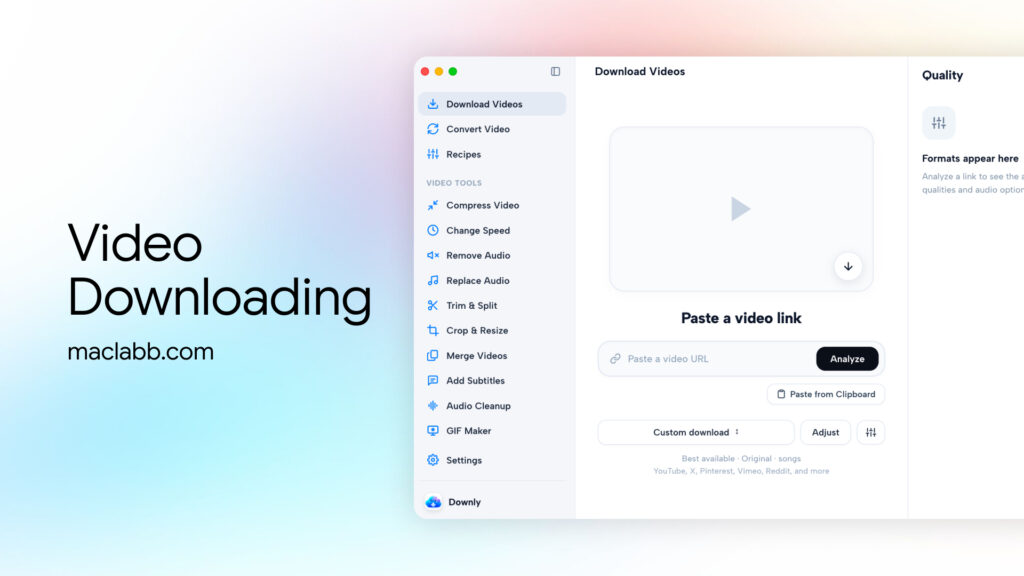
Paste and analyze links: Paste a video URL or use the clipboard option, then analyze it to see the available download choices.
Quality selection: Choose from the resolutions and formats available for the selected video, rather than being restricted to one fixed output.
High-resolution support: The website advertises 4K and 8K downloads, HDR and up to 60fps when supported by the source.
Multiple supported platforms: The site lists more than 1,000 supported websites, with examples including YouTube, Vimeo, TikTok, X/Twitter, Instagram, Pinterest, Reddit and Twitch.
Download progress: Track each download’s progress and see transfer information while files are being saved.
Audio-only downloads: Save a video’s soundtrack without downloading the video picture when an audio option is available.
Subtitle downloads: When subtitles are available, select a language and save the chosen subtitle track as an SRT file.
2. Audio Extraction and Audio Tools
Audio extraction: Extract soundtracks from supported videos, with formats such as MP3, AAC and FLAC listed by the website.
MP3 and M4A conversion: Convert local media files to MP3 or M4A for more convenient audio playback and storage.
Remove Audio: Use the dedicated Remove Audio tool when a video needs to be made silent.
Replace Audio: Use Replace Audio to swap the audio track in a video as part of a media-editing workflow.
Audio Cleanup: Access the Audio Cleanup tool for audio-focused processing.
Clean voice output: The website’s download interface shows a Clean Voice WAV option as an example of an available audio choice; actual options depend on the analyzed source.
3. Video Conversion
Multiple output formats: Convert local video files to formats including MP4, MOV, MKV and WebM.
Apple ProRes: The feature list also names Apple ProRes as a supported conversion/export format.
Format flexibility: If a video is available in a source format other than MP4, users can download the original and convert it afterward when the desired output is supported.
GIF creation: Turn a short video clip into an animated GIF using the built-in GIF Maker.
4. Video Editing and Optimization
Compress Video: Reduce a video’s file size. The site says users can set a target size and view an estimated result before processing; the final size can vary depending on the video content.
Change Speed: Adjust the playback speed of a clip for the intended viewing or editing result.
Trim Video: Remove unwanted sections from the beginning, middle or end of a clip.
Split Video: Divide a longer video into smaller sections.
Crop & Resize: Change the visible frame or dimensions to better suit a particular layout or destination.
Merge Videos: Combine video clips into a single sequence.
Add Subtitles: Work with subtitle tracks; available subtitle downloads can be saved as SRT files.
Original-file protection: The website states that editing tools create new output files, leaving the original file intact.
5. Custom Recipes and Download Presets
Recipes are reusable presets that help users avoid selecting the same download settings every time. A Recipe can store a preferred download folder, video quality, file type, subtitle choice, filename style and size limit. Users can select a saved Recipe before starting a download or change settings for an individual video. For example, someone who regularly saves high-quality videos with subtitles can create a preset for that workflow and apply it with a click.
6. Mac Compatibility, Performance and Privacy
Mac compatibility: The official FAQ lists macOS 13 or newer and says the app supports both Apple Silicon and Intel Macs.
Apple Silicon acceleration: The product advertises accelerated transcoding on M1, M2, M3 and M4 chips.
Local processing: The developer describes Downly as running entirely on the Mac, with zero telemetry or link tracking.
No additional tools required: The FAQ says Downly includes the tools it needs, so users do not need to install separate utilities for its listed workflows.
License activation: The FAQ explains that users activate the app with the license key and purchase email from their receipt. The activation is saved in the Mac Keychain.
Updates: Users can check for updates from Downly or Settings and review and install an update when one is published.
Pros
All-in-one workflow: Combines downloading, conversion, audio extraction and useful editing tools in one app.
Broad website support: The site advertises support for more than 1,000 websites, although compatibility can vary by source.
High-resolution options: Supports up to 4K and 8K, HDR and 60fps where the source provides them.
Flexible download choices: Lets users review available resolutions, formats, audio and subtitle options for each link.
Useful editing utilities: Includes compression, speed adjustment, trimming, splitting, cropping, resizing, merging and GIF creation.
Reusable presets: Recipes save preferred folders, formats, quality, subtitles and filename settings.
Mac hardware support: The site lists compatibility with Apple Silicon and Intel Macs on macOS 13 or newer.
Original-file preservation: Editing tools create new output files instead of directly changing the source file.
Things to Keep in Mind
Availability varies: A website being supported does not mean every video on it can be downloaded. Private, restricted or protected videos may not be available.
Formats depend on the source: Not every video is available as MP4. Some high-resolution videos use other source formats and may need conversion after download.
Some services may request verification: The FAQ says YouTube usually does not require sign-in, but a particular video or connection may sometimes require sign-in or verification.
First-launch macOS warning: The website says Downly is currently distributed without Apple notarization. It provides a Start Here guide in the DMG for users who downloaded the app from maclabb.com. Users should only bypass security warnings when they have independently verified and trust the download source.
Respect usage rights: Downloading content may be restricted by a platform’s terms or copyright law. Users should only download material they are authorized to save.
Pricing
Downly Annual Plan — $4.99 per year
The official website currently displays a special launch offer of $4.99 per year for the annual plan. It is billed yearly, and the website says subscribers can cancel at any time in one click.
The listed annual plan includes:
- Full access to the video downloader and media toolkit.
- 4K and 8K HDR video downloads at up to 60fps when available from the source.
- Support for more than 1,000 listed websites.
- Audio extraction and audio-format options.
- Video conversion, including MP4, MOV, MKV, WebM and Apple ProRes as listed.
- Video editing tools such as compression, trimming, splitting, cropping, resizing and merging.
- Subtitle tools and custom Recipes.
- Apple Silicon acceleration and included software updates.
The website also describes secure checkout and instant license-key delivery. Pricing and promotional offers can change, so check the official pricing page before purchasing.
Who Should Consider Downly?
Downly may suit Mac users who frequently save videos from supported websites, extract audio, convert media formats or make quick edits without opening a full professional video-editing suite. It may be particularly convenient for content researchers, students, creators and people who organize personal video libraries. Users who only need to download a video occasionally may not need a paid all-in-one tool.
Final Verdict
Downly positions itself as more than a basic video downloader. Its main appeal is the combination of link-based downloads, quality and format choices, audio extraction, conversion, reusable Recipes and quick video-editing utilities in a single Mac application. The advertised $4.99 annual launch price is straightforward, but buyers should verify the current price, check that their preferred sites and formats are supported, and remember that download availability depends on each source. For Mac users who regularly work with online video and local media files, Downly is worth evaluating.